If you care about protecting your privacy and want to reduce your reliance on Google, using an iPhone is a good idea, but it isn't enough on its own. Here are the settings and apps I recommend to protect your personal data.
Limit app access to your personal data
Location services
To get a better sense of how serious it is when the location data of millions of people flows to companies no one has heard of, I recommend reading this New York Times investigation: Twelve Million Phones, One Dataset, Zero Privacy. The problem is not only that some of your apps frequently access your location, but also that these apps transmit your location to third-party services (advertisers and personal data resellers) whose existence you are completely unaware of.
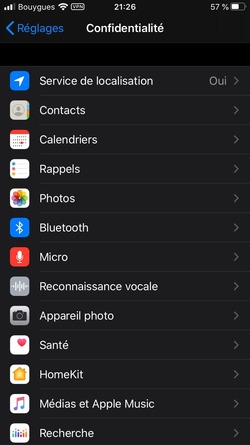
How can you keep the risks to a minimum? Go to "Settings", then "Privacy" and "Location Services": this is where you'll see which apps are allowed to access your location.
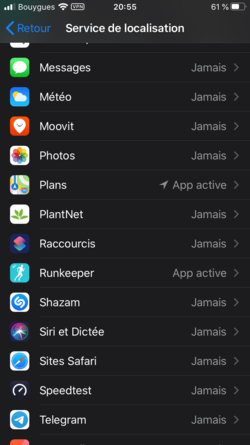
A good idea is to restrict this access as much as possible: “Never” should be your default choice. Here are the options:
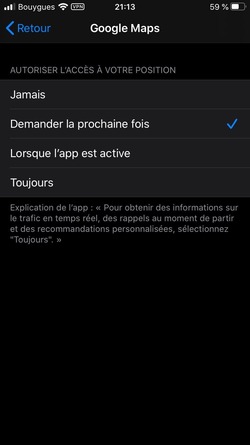
Here it's worth noting a new option introduced with iOS 13, “Ask Next Time”: each time you launch the app, you can choose whether or not to turn on location.
Other access to restrict for apps
While real-time location tracking is the most sensitive personal data, your iPhone apps also have access to other personal data. It's therefore a good idea to go through each of these categories to restrict certain apps, again via “Settings”, then “Privacy”. You may be in for a few surprises, such as the number of apps that have access to your contacts or your Bluetooth.
Enable limited ad tracking
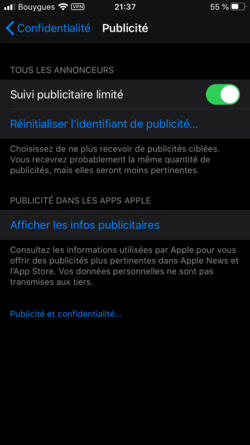
Still in "Settings", then "Privacy", now go to "Advertising" and enable "Limit Ad Tracking". Unfortunately, app developers aren't strictly required to honor this setting, but they do have access to it and can therefore decide to stop showing you targeted advertising. You can also regularly reset your advertising identifier (the equivalent of deleting cookies in your browser, and therefore starting over with advertisers).
Protect your web browsing
Since Apple does not allow other browsers to use their own rendering engine, there is no extension system that you can add to a browser, as you can with Firefox on desktop or Android, for example.
I therefore recommend keeping Safari, especially since it has recently done a lot to block ad trackers (via a mechanism called Intelligent Tracking Prevention, which has a spectacular effect on advertisers). You can go further by installing an ad blocker, using private browsing and changing the default search engine.
Add an ad blocker
Since Safari doesn't allow extensions, you may be wondering how to block ads. As it turns out, since iOS 9 Apple has allowed "Content Blockers": third-party apps that block a list of domains as you browse in Safari, which does effectively block ads (only in Safari, not in apps). For this, I recommend installing Firefox Focus, which works remarkably well on my iPhone.
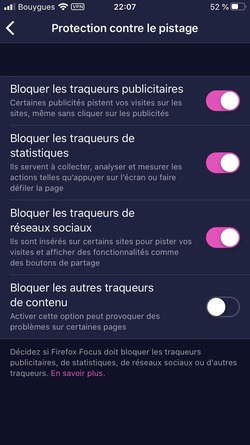
Firefox Focus comes with a browser, which is of no use if you stick with Safari (and, ironically, the Firefox Focus browser doesn't block ads), but it also comes with a very effective content blocker for Safari: as you can see above, it can block ads, but also analytics trackers (like Google Analytics) and social media trackers (like Facebook or Twitter).
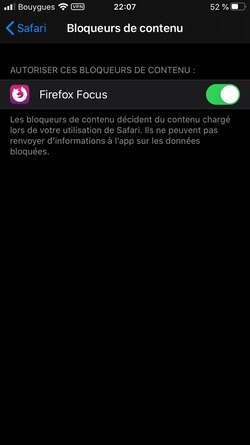
To activate it, you need to go to “Settings”, then “Safari” and finally “Content blockers”.
Switch to private browsing
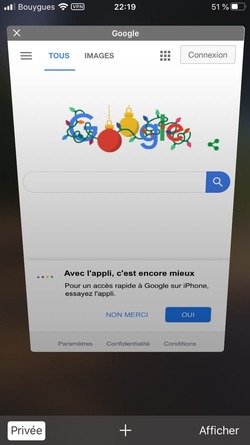
There's little reason not to use private browsing on mobile: when you're logged in, you're generally using an app rather than Safari. Keeping your browser in private browsing mode automatically deletes cookies at the end of your session, which prevents websites from tracking you from one session to the next.
Change your default search engine
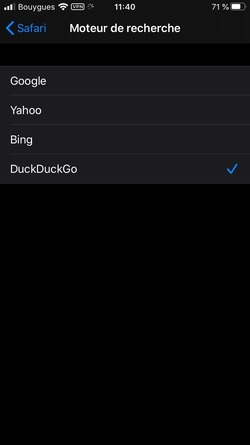
On Safari, the default search engine is Google. While Google is still the best, most of the time you'll get just as satisfactory results with DuckDuckGo, a search engine that respects its users' privacy by not logging their queries. To select DuckDuckGo, go to "Settings", then "Safari" and finally "Search Engine".
Protect yourself when using an application
Apps are in a good position to track you, because they often have access to your iPhone's features: your advertising ID, and potentially other information such as your location, your camera, your Bluetooth access, and so on. What you probably don't realize is that these apps can easily pass this personal information on to third parties (often advertising or audience-measurement tools). How can you block those third parties?
While content blockers only work in Safari, there are ad blockers out there that will block the ads shown inside apps. This calls for specialized apps. VPNs can also allow you to hide your IP address from your internet service provider and the sites you visit.
DNSCloak: the ad blocker for apps
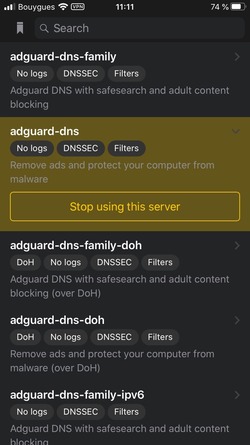
DNSCloak is a handy app that lets you choose a DNS proxy provider. What is that? DNS is an essential internet service: it matches IP addresses with domain names. When you type "google.fr" into your browser, a request is first sent to a DNS server (usually your internet service provider's) to find the IP address of "google.fr" (here: 172.217.20.131). Since iOS 11, Apple has allowed the use of a DNS proxy, which can offer several features: encrypting requests, blocking requests to ad servers, and so on. On DNSCloak, I use adguard-dns, which lets me remove ads.
ProtonVPN: to hide and secure your browsing
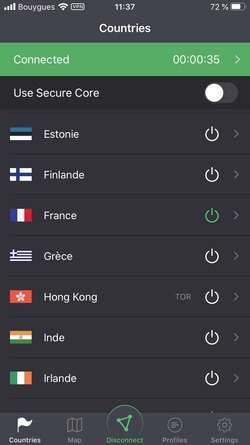
If you want to secure your browsing and hide your IP address, you need a VPN. This intermediary is then the only one that knows your IP address, so you must choose it with great care. ProtonVPN is offered by the publisher of Protonmail, an encrypted email service based in Switzerland, developed by scientists at CERN and MIT, and with an excellent reputation for defending privacy. The crucial point: ProtonVPN keeps no logs of your traffic (and Swiss law does not require it to), so there's no way for it to analyze your browsing after the fact. Note that you can also use ProtonVPN on your other devices (Mac, PC, etc.).
Protect your iPhone in case of theft
If your iPhone is stolen, it is important that your personal data is encrypted so the thief cannot access it. To do this, go to “Settings”, “Touch ID & Passcode”, and create your 6-digit code. Also, be sure to enable the option that erases the iPhone's data after 10 failed attempts (which protects your iPhone against a brute-force attack). On the importance of encryption, read Tim Cook's letter, Apple's CEO, on his refusal to compromise iPhone encryption during the Apple-FBI case.
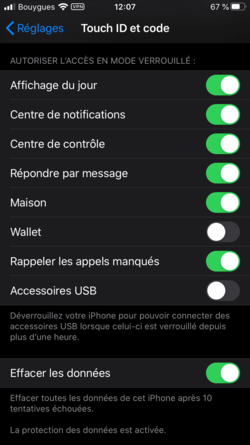
Here you should see the message "Data protection is activated."
Protect your Apple account in case of password leak
This is a good practice, also valid for your other accounts (Google, Facebook, etc.): enable two-factor authentication to protect access to your Apple account (your iCloud password alone will not be enough to access your account). To do this, go to “Settings”, then tap your name, and finally “Password & Security”.